Media files can be viewed, added, and searched in the System ➝ Media section.
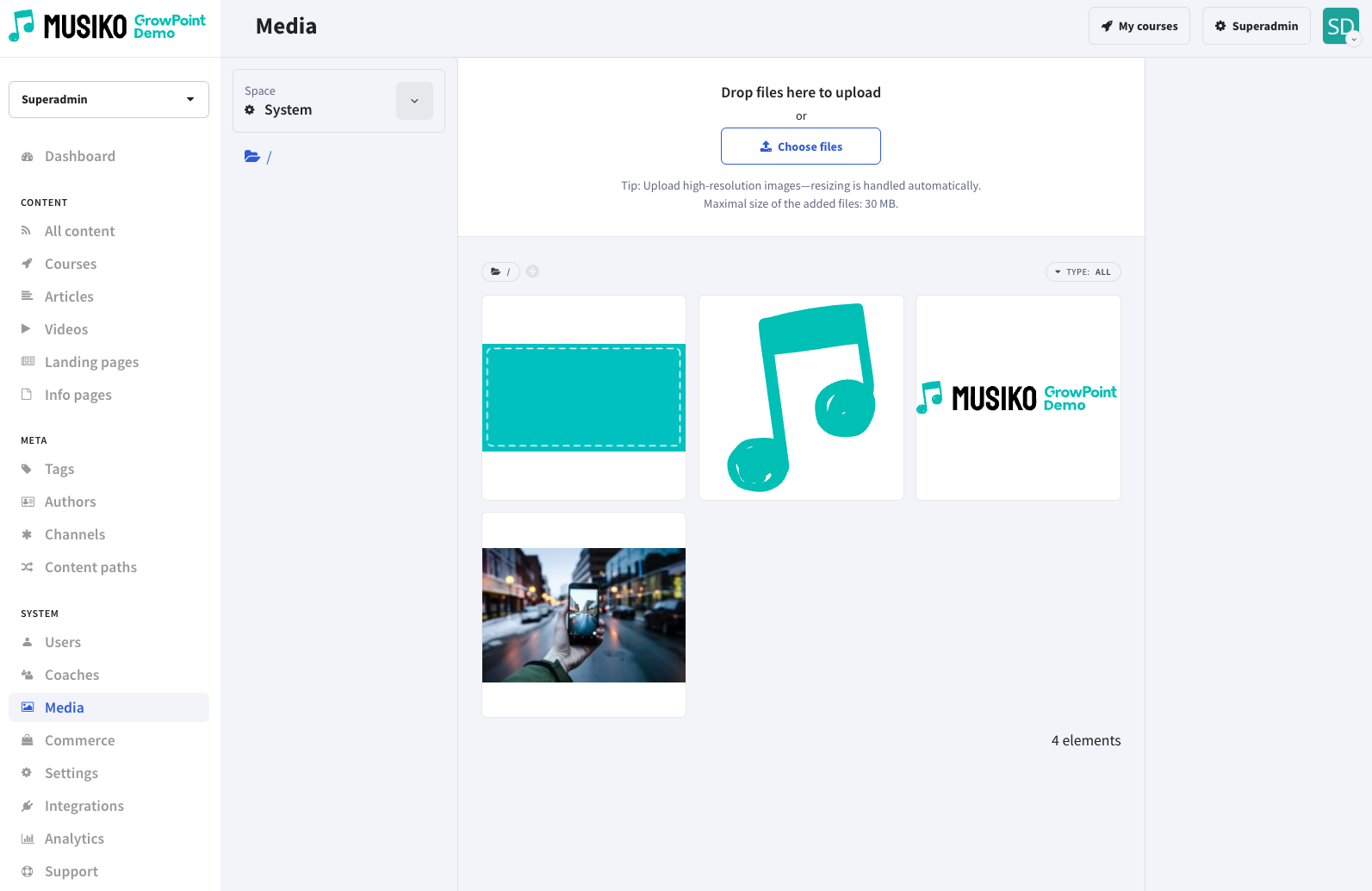
Media file viewer
All files are stored in a chosen Space. Spaces are areas of the file manager that serve two purposes:
| General | Available for Superadmins and Redactors |
| System | Available for Superadmins |
| Public | Available for Superadmins, Redactors and Course Administrators |
| Courses | Available for Superadmins and Course Administrators |
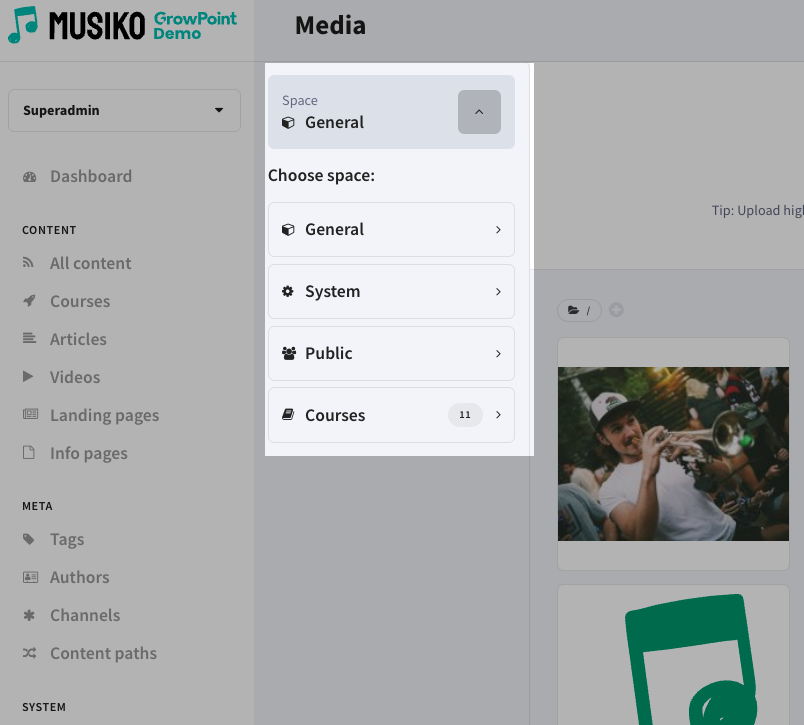
Space selector
The „Courses” collection is a group of spaces that are course-specific. Every course has its own space and the Course Administrator has access to it. When managing course content this space will be chosen by default (e.g., when adding an image).
In order to allow for a clean file organization each space consists of its own folder tree.
| Create folder | Click on a „Plus” icon next to the parent folder name. |
| Rename folder | Click on a „Pencil” icon next to the folder name. |
| Remove folder | Click on a „Bin” icon next to the folder name (all contents will be removed as well). |
| Move folder | Drag folder and drop it in the desired parent folder (all contents will be moved as well). |
Files in the current folder are visible in the space at the center of the screen and can be filtered by type (image, video, PDF).
Clicking on a file displays a „File detail” section which includes following points:
| Preview | Preview of the file (if available) |
| Name | Full name of the file |
| File size | File size in KB |
| Image resolution | Image resolution in px (if available) |
| Open in new tab | Direct link to the original file |
| Delete permanently | Click to remove this file from the Media Manager |
| File URL | Full URL of the original image |
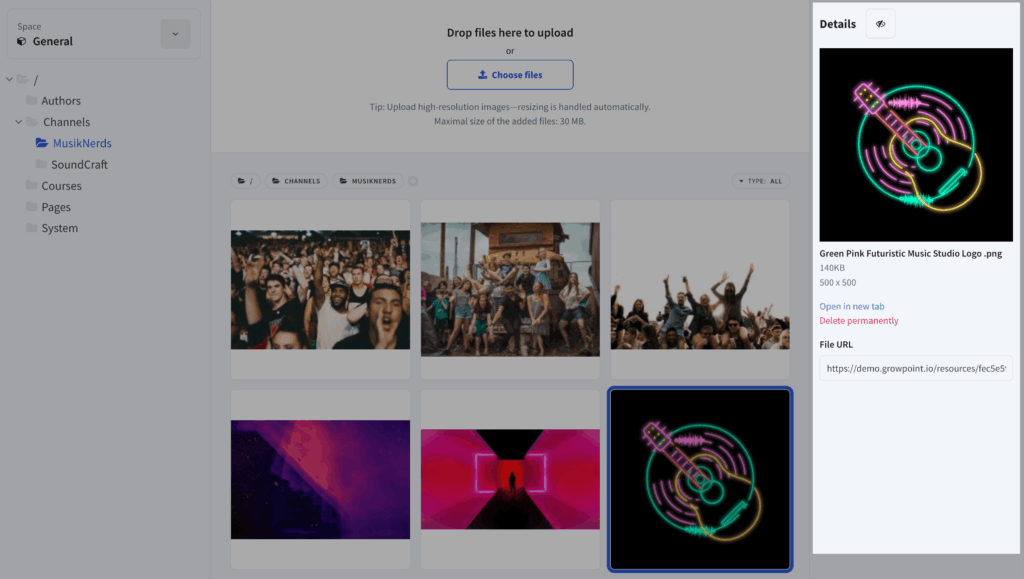
File details section
The system performs optimization efforts in order to lower the final size of the loaded images in users’ browsers. These include:
| Image resizing | The system generates several size versions of each image in order to always load the smallest possible version depending on the context of use. |
| File format conversion | All images (apart from .svg vector images) are converted to .webp format in order to optimize the file size. |
| Image compression | All images are compressed slightly in order to reduce the file size. |