All Users refers to the collective group of individuals who interact with the platform, regardless of their specific role, access level.
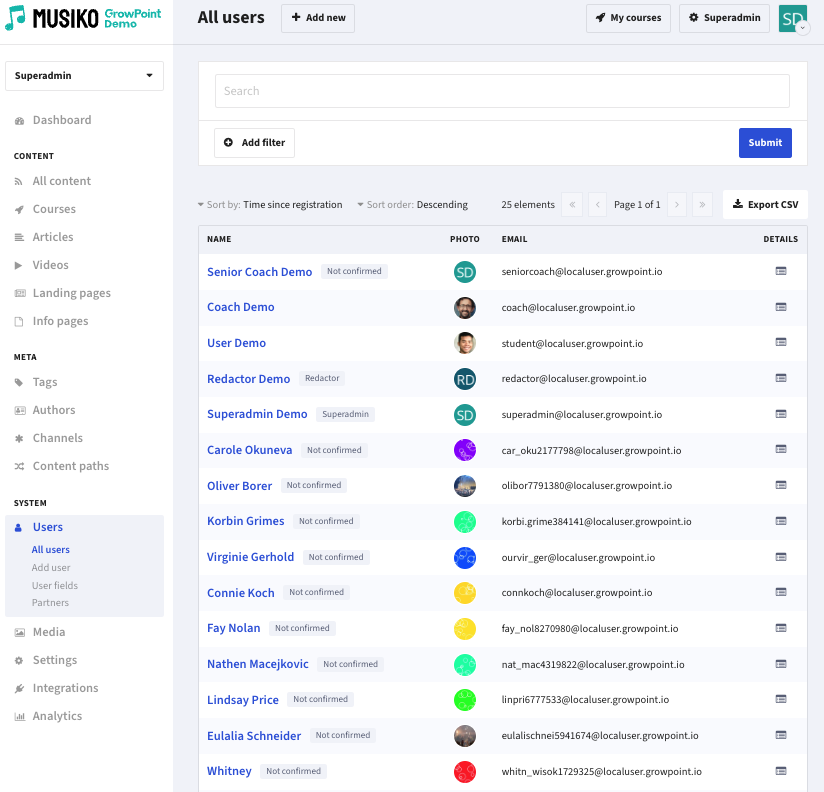
All users view
Filter the list of users using a powerful filtering engine. The list of available filters is based on system information, course activity information and user fields that are defined. You can add filters to narrow down your search and limit the results to the specific time frame.
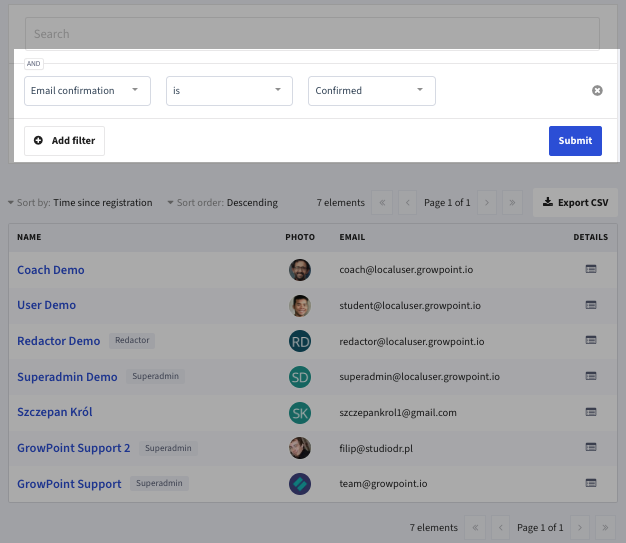
Filter window
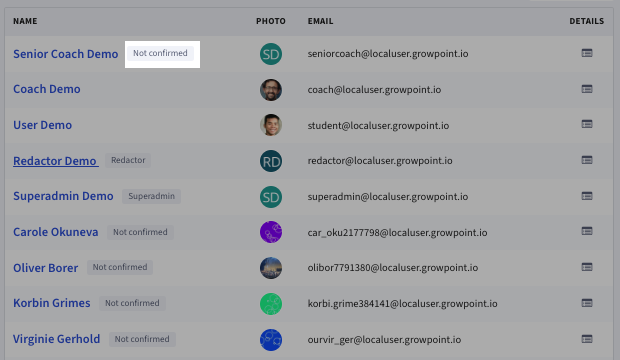
Information on the account email confirmation status.
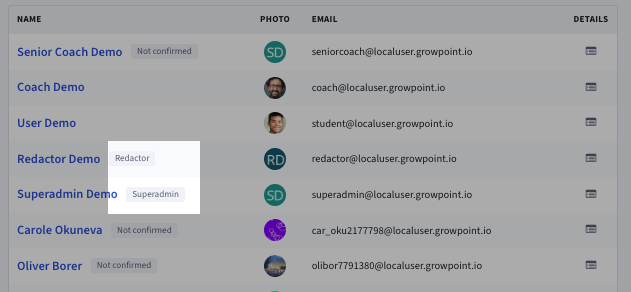
Special roles are displayed next to user name.
Clicking on a user opens user details:
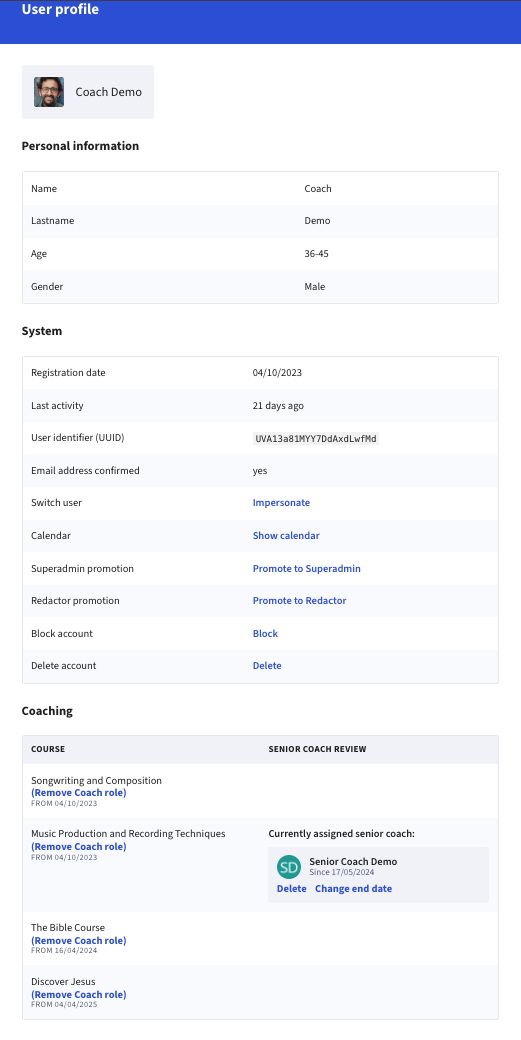
This section contains all user fields that the user filled out during the course enrolment process. I.e.:
| Name |
| Last name |
| Age |
Information about system events like registration, activation, coach vacation and some actions:
| Registration date | Date of user registration |
| Last activity | Date of last activity |
| User Identifier | UUID – Universally Unique Identifier |
| Email address confirmed | Information if the account email has been confirmed or not. |
| Switch user | Superadmin can impersonate any user to see their account view |
| Calendar |
Visual display of a user’s activity
|
| Superadmin promotion | Superadmin can promote an account to the superadmin role |
| Redactor promotion | Superadmin can promote an account to the redactor role |
| Block account | Superadmin can temporarily block an account |
| Delete account | Superadmin can permanently delete an account. The account and personal information will be removed. User messages will be anonymized but remain in the system. Historical analytics are not affected. |
| Coaching | If the user has a Coach role in any course, this displays the course name, date of becoming a coach, and optional reviews from Senior Coaches. |
User calendar visualizes student activity on the platform in a calendar view. Activity in each course is highlighted by a different color, including the amount of minutes (number in each box) spent on that course on a given day (approximate value based on having an active tab open).
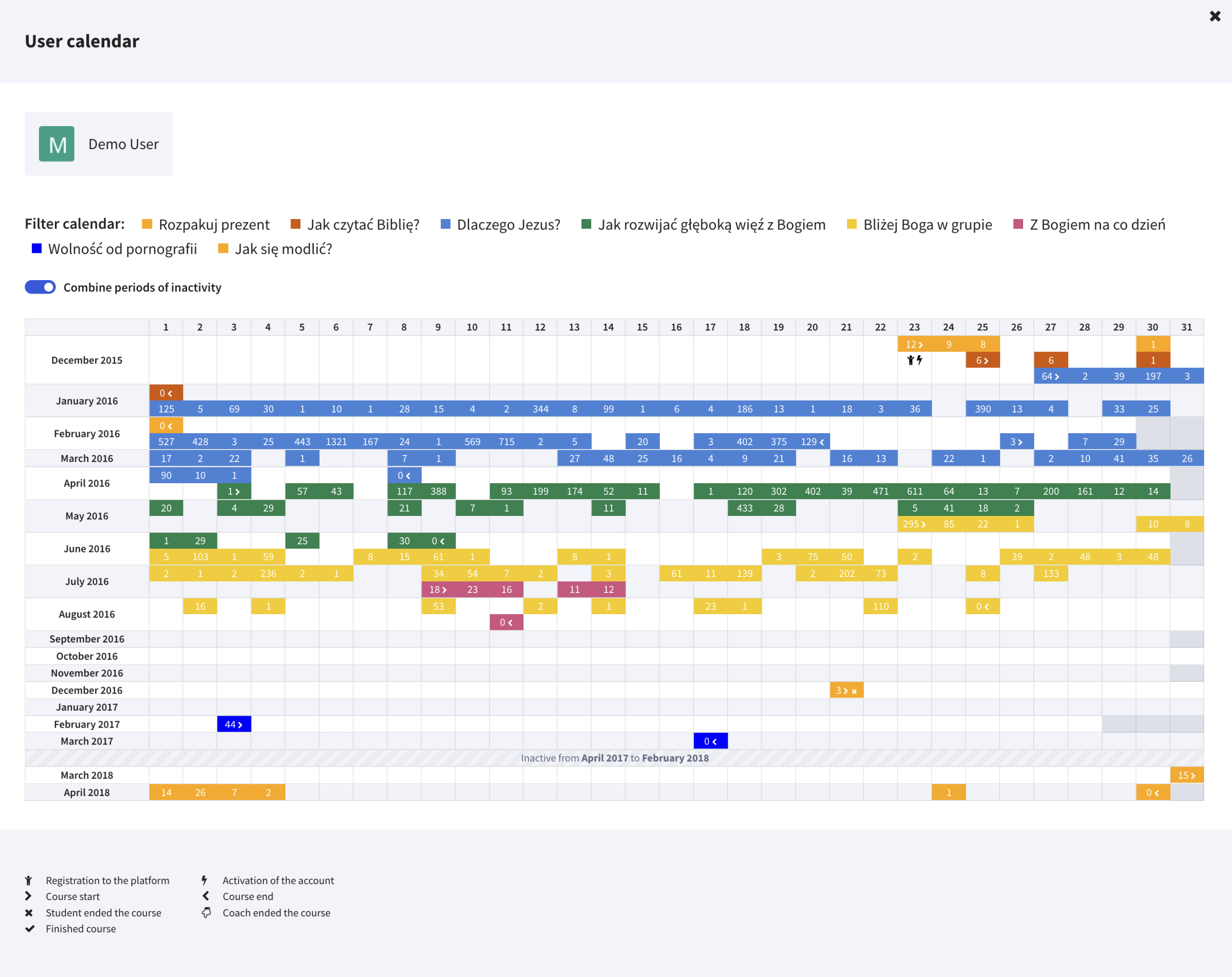
Activity visual display – „calendar”
Export to CSV – Superadmin has the possibility to download the user list to CSV
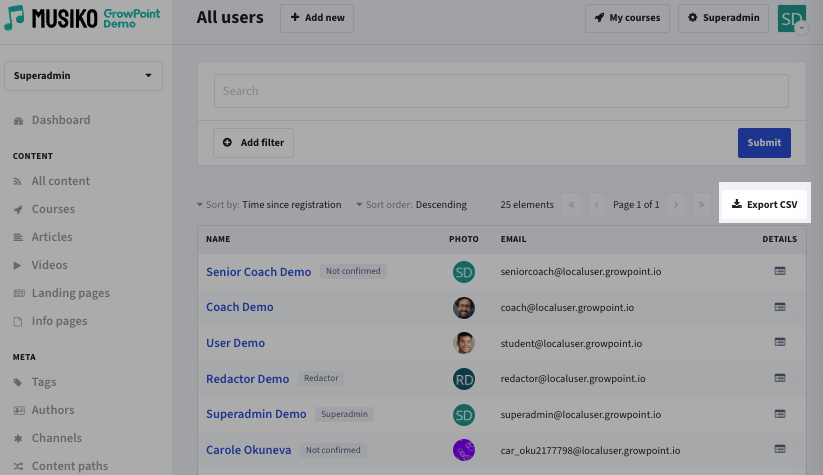
Download to CSV button placement
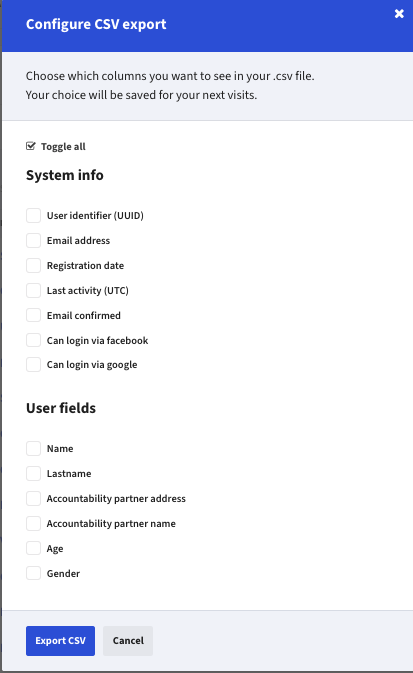
CSV file export options window
Last options chosen will be saved as default for future exports.