Clicking on their profile picture (if set) or initials (top-right corner) opens a dropdown menu with the following options:
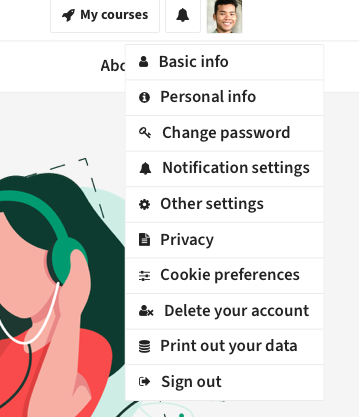
User profile menu
Displays the student’s registered email and allows them to update their profile picture.
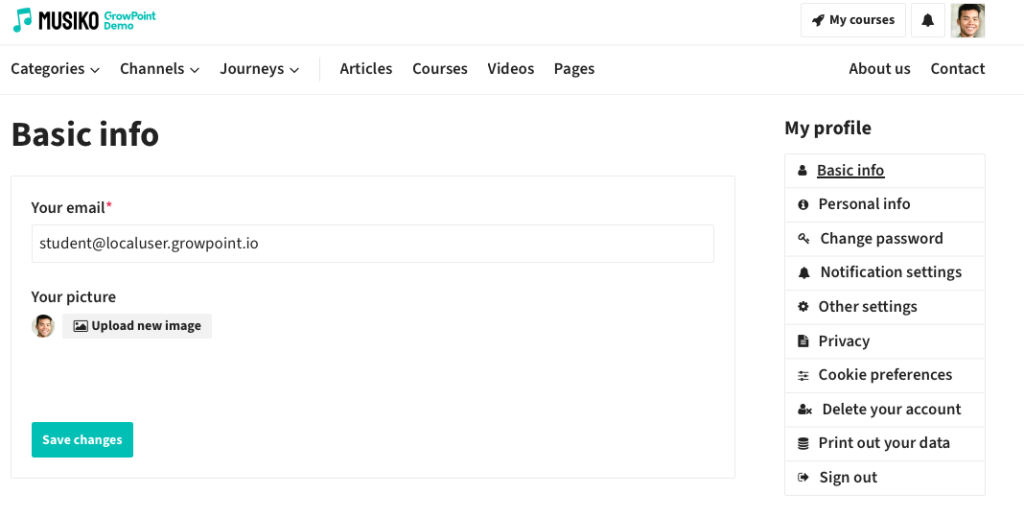
User – basic info
Enables students to edit their name, last name, and age tier.
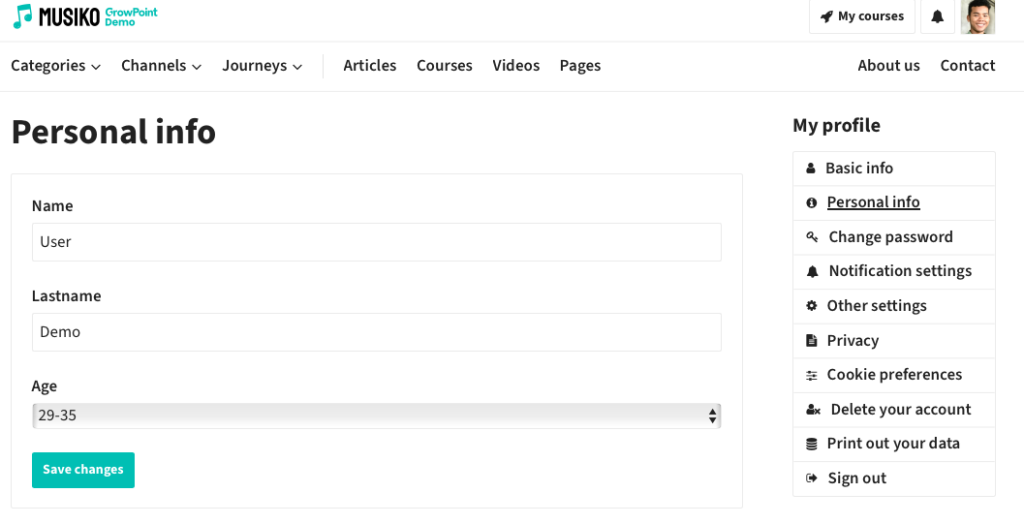
User – personal information
Allows students to update their password.
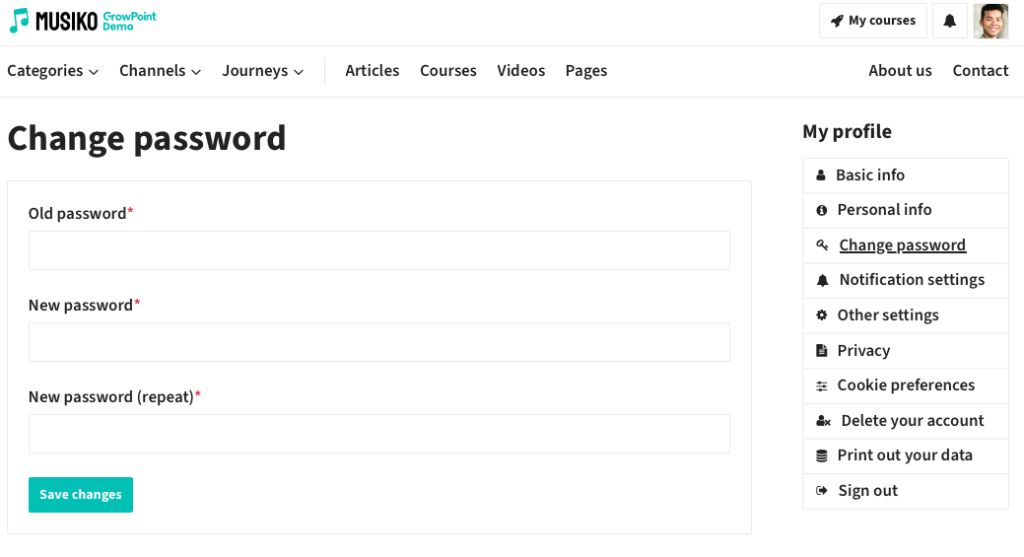
User – change password
Customizes notification preferences.
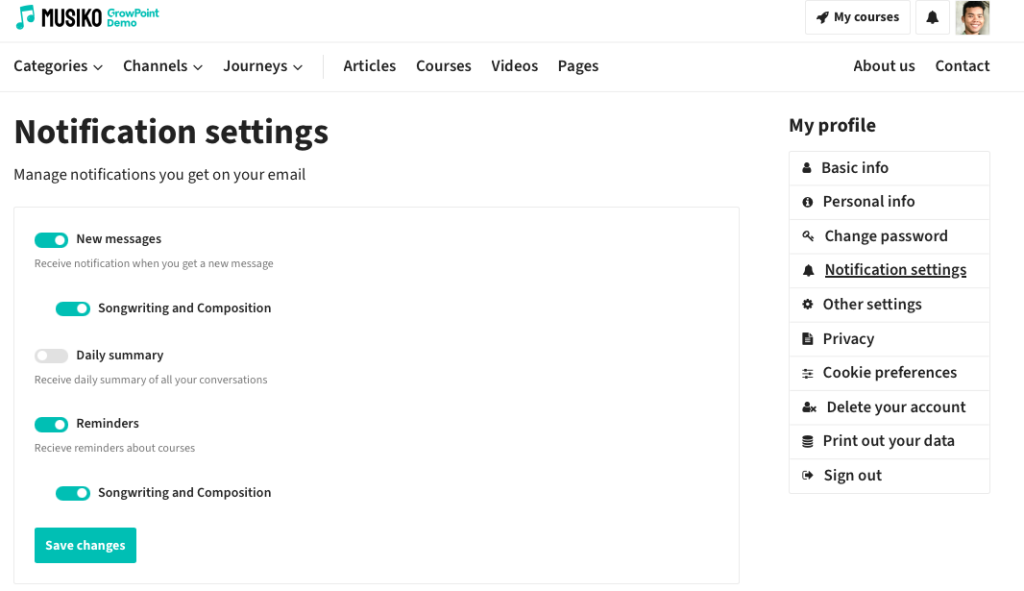
User – notification settings
Adjusts messaging options.
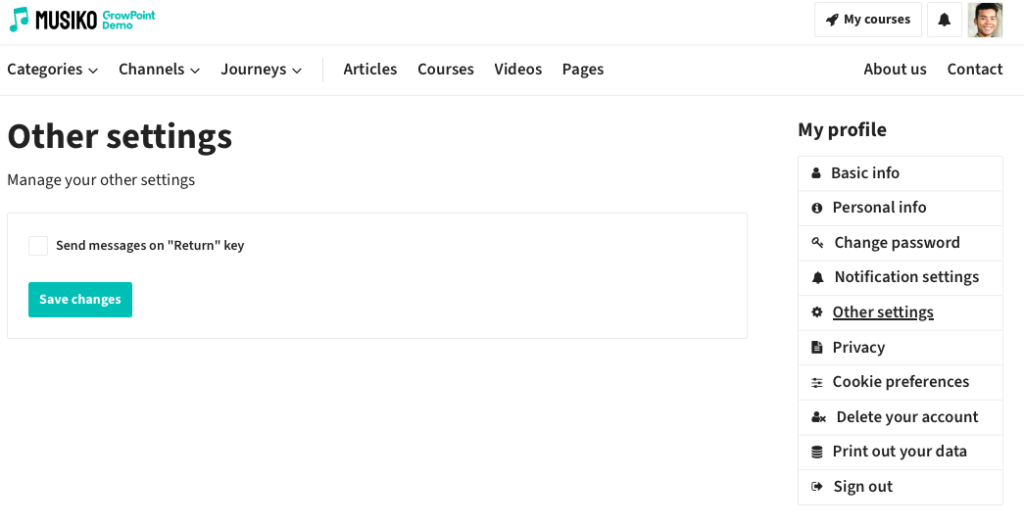
User – other settings
Manages privacy preferences.
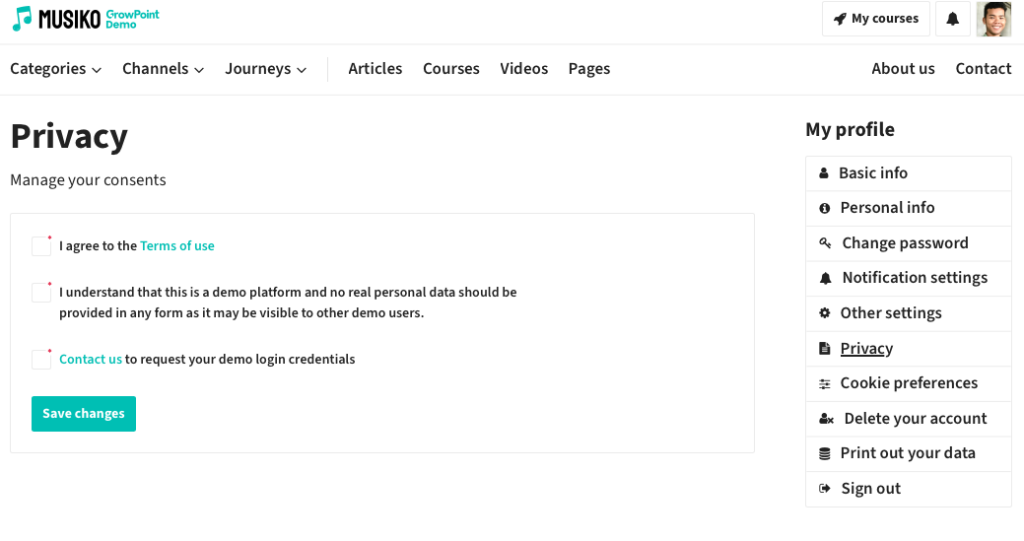
User – privacy agreement
Configures cookie settings.
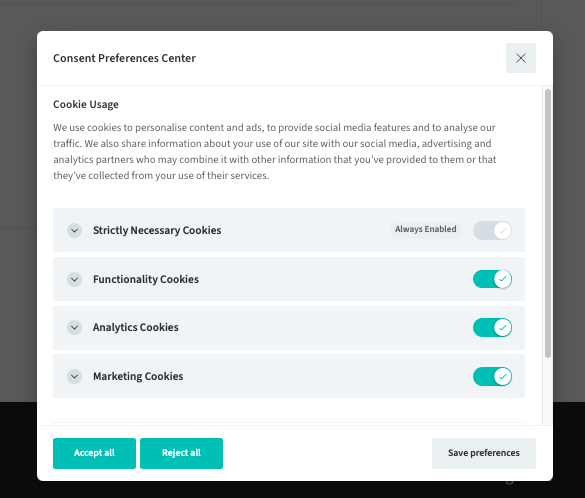
User – cookies preferences
Permanently deletes the student’s account.
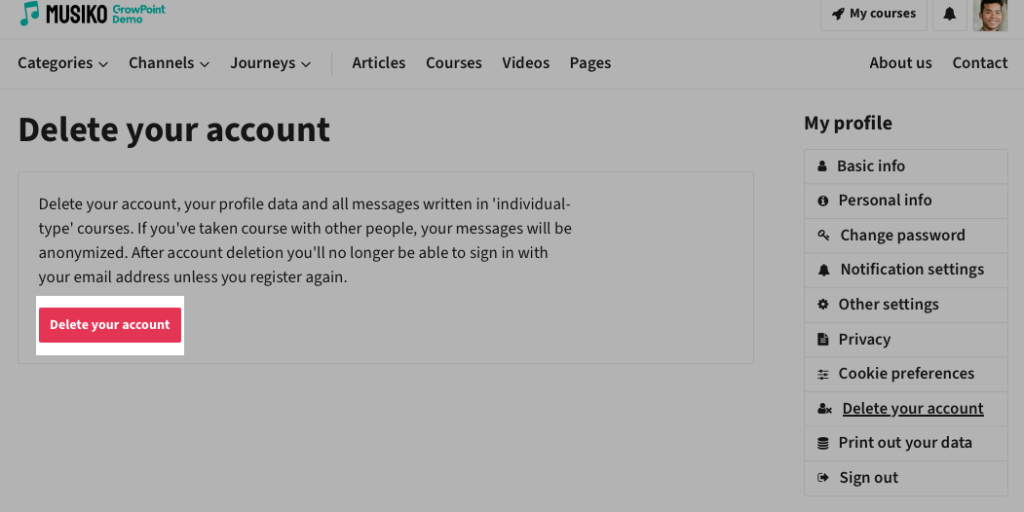
User – delete account window
Provides an option to download or print stored data.
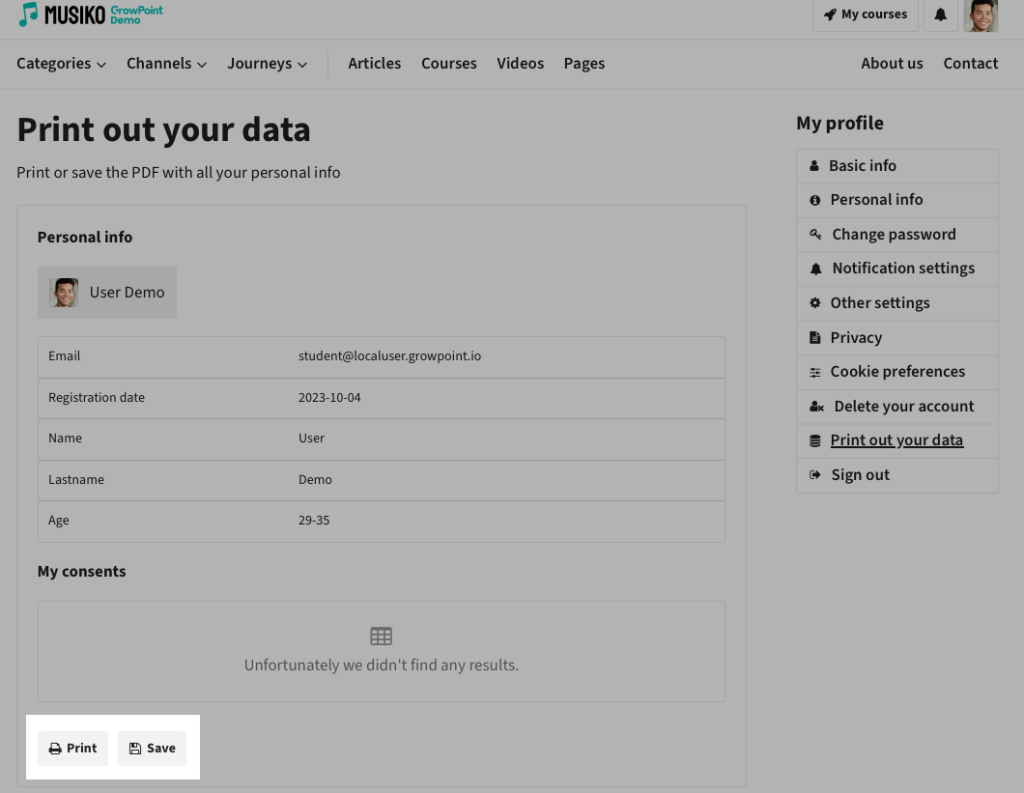
User – print your data window
Logs the student out of their account.
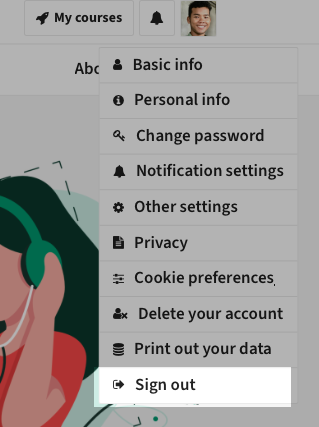
User – sigh out window